
Import Historical AI Usage Data (CSV Backfill)
Backfill past LLM requests and plan assignments into AI Observly from a CSV, so historical usage shows up in cost and margin metrics.
If you were tracking LLM usage before connecting AI Observly, or you're migrating from another tool, you can backfill that history via CSV instead of losing it. This page covers the Import Historical CSV flow: where to find the template, what each column means, and what to expect after importing.
What this is for
- Backfilling past LLM requests and their plan/feature assignments, so cost, margin, and usage metrics reflect your full history rather than only data collected after you connected AI Observly.
- A one-time cleanup step, most useful right after onboarding or when migrating from another observability tool.
Steps
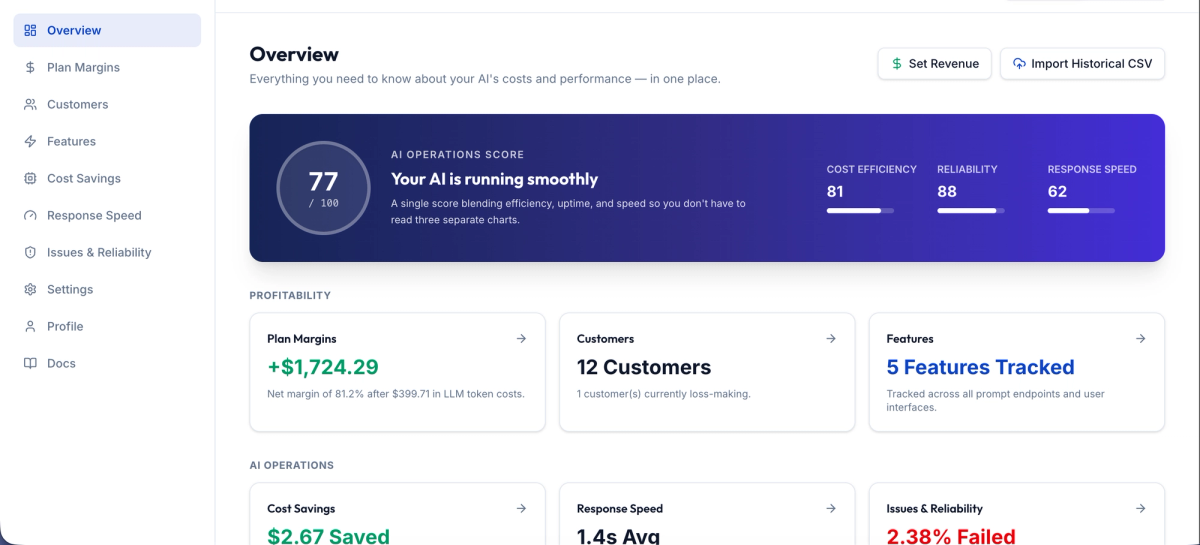
- From the Overview page, click Import Historical CSV in the top right, next to Set Revenue. [Screenshot: Overview page, Import Historical CSV button]
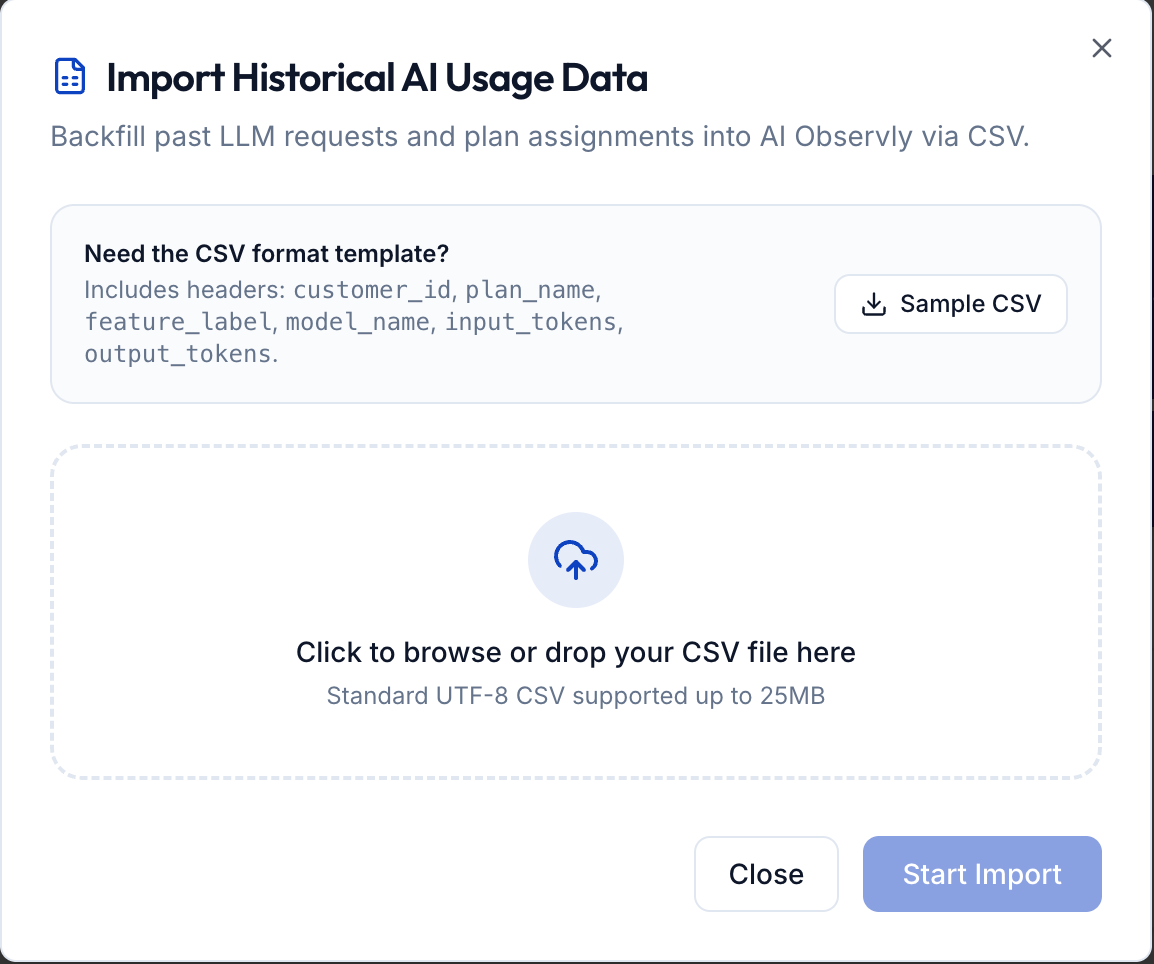
- The Import Historical AI Usage Data modal opens: "Backfill past LLM requests and plan assignments into AI Observly via CSV." [Screenshot: Import Historical AI Usage Data modal]
- Click Sample CSV to download a template with the correct headers already in place.
- Fill in one row per historical request, then click the drop zone ("Click to browse or drop your CSV file here") and select your file, or drag it in directly.
- Click Start Import. This button stays disabled until a file has been selected.
CSV format
The modal's summary text calls out six columns as required. The downloadable Sample CSV includes four additional optional columns for extra context and accuracy.